Installation Path
Custom icons need to be placed in a specific folder in the game files to work. Once placed in the correct folder, the game will use them to override the default icons, resulting in our custom ones showing in the game.
This guide explains how to automatically and manually locate the installation folder for your game.
Please note that as mentioned in the custom icons not showing guide, this path has to be exact for icons to work.
If you move the game to another folder or drive, you will need to update the path in NightLight Desktop.
Automatically locating the installation path
NightLight Desktop can automatically locate the path for Steam, Epic Games Store, and Windows Store/Xbox Game Pass installations.
These can be viewed and opened from the app's settings page by clicking the open folder button on the right.
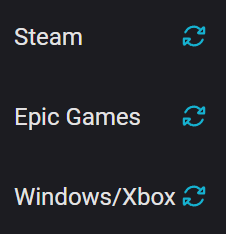
If you change where the game is installed, you'll need to click the relevant refresh button on the settings page to update the app:
Manually locating the installation path
Steam
In your game library, right-click on Dead by Daylight then click Manage and Browse local files.
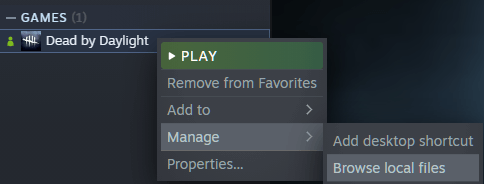
File Explorer should then open in the game's root folder, if you're using NightLight Desktop then this is the path you want to provide.

Default: C:\Program Files (x86)\Steam\steamapps\common\Dead by Daylight
If you're installing icons manually, then you'll want to navigate deeper, DeadByDaylight > Content > UI > Icons.
Epic Games Store
In your game library, click on the … on the Dead by Daylight card and then click Manage.
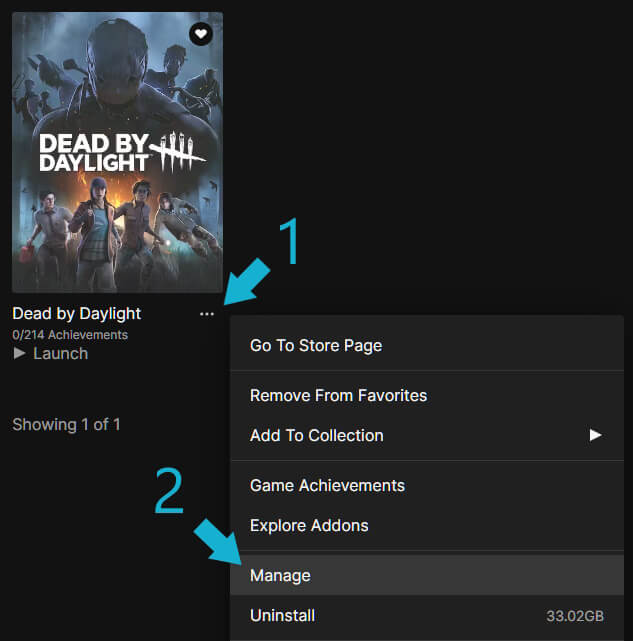
File Explorer should then open in the game's root folder, if you're using NightLight Desktop then this is the path you want to provide.

Default: C:\Program Files\Epic Games\DeadByDaylight
If you're installing icons manually, then you'll want to navigate deeper, DeadByDaylight > Content > UI > Icons.
Windows Store/Xbox Game Pass for PC
In the past, Windows Store/Xbox Game Pass installations were read-only, which meant you couldn't install default icons without following some extra steps. It seems like they might have changed it between Windows 10 and 11, but I'm not certain when or why it changed.
If your installation isn't read-only, then installing custom icons should be as simple as with any other game store.
By default, the installation path will be: C:\XboxGames\Dead By Daylight\Content (If you've installed it to a
different drive, replace C:\ accordingly).
Otherwise, you can find it in the game's properties like with Steam and the Epic Games Store.
"Selected path not valid" error in NightLight Desktop
If you are getting this error, verify your game files and try again.